

Let’s create windows explorer context menu item to convert kindle .mobi ebook files to epub files.
What you need:
- Calibre Ebook management software (free open source) from here.
Then we need to edit windows registry. Be sure to be careful with registry. (You might want to read warning)
First open Regedit: WIN+R
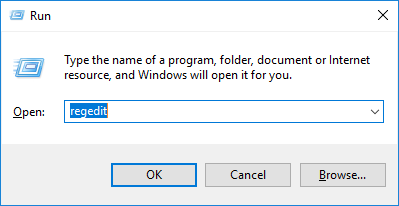
Here is the registry code from file “mobitoepub.reg”:
Windows Registry Editor Version 5.00

[HKEY_CLASSES_ROOT\Amazon.Kindle.content\shell\Convert to epub]
@=""

[HKEY_CLASSES_ROOT\Amazon.Kindle.content\shell\Convert to epub\Command]
@="\"D:\\adm\\mobi2epub.bat\" \"%1\""
edit the path “D:\adm\mobi2epub.bat” to point to where you copy “mobi2epub.bat” file.
Here is the bat file code (it is assumed that you have your Calibre install at the defaul install path: C:\Program Files\Calibre2.
REM  @ECHO off

SET calibrPath="C:\Program Files\Calibre2\ebook-convert.exe"
ECHO @ECHO OFF ^& (IF EXIST "%%~dp0%~n1m2e.epub" (DEL "%%~dp0%~n1m2e.epub")) ^& %calibrPath% "%%~dp0%~nx1"  "%%~dp0%~n1m2e.epub"  ^& (PAUSE) > "%~dpn1.bat"
REM Immediately execute the generated bat
CALL "%~dpn1.bat"
DEL "%~dpn1.bat"
Import that reg file to registry. It will add context menu item for .mobi files to convert them to epub files.
(In case your registry does not have Amazon.Kindle.content entry I could be you need to install Kindle pc software, or you should be able to find another entry that corresponds to .mobi file type.)
So you may now convert mobi file directly from windows explorer like this:

Here is more detailed article about adding context menu items to windows explorer. https://www.howtogeek.com/107965/how-to-add-any-application-shortcut-to-windows-explorers-context-menu/
